
























How to create Rusty Text with Holes
Step 1:
Let’s start out by creating a new file. I used a 500×200 pixels canvas set at 72dpi, and I filled my background with a white colour. Now create a new layer set and name it ‘Text Design’.
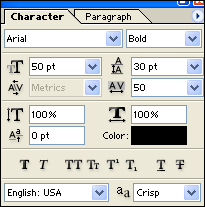
Select the Horizontal Type Tool and set the font family to Arial, bold, 50 pt, crisp and black as the shade of colour. Then open up the character palette and add the settings below:
Step 2:
In a new text layer type out your text.As you can see, in this tutorial we’ve used ‘Welcome to castleprint.co.uk’.

Step 3:
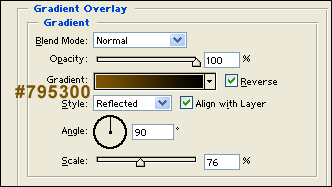
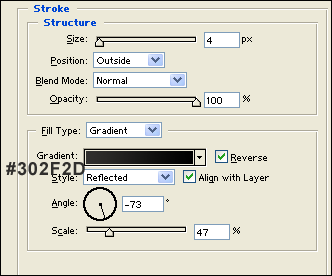
Under Layer Style (Layer > Layer Style) add a Gradient Overlay and Stroke blending options to your text layer.

Step 4:
Duplicate your first text layer and delete the layer styles attached by right clicking on the text layer under the layers palette and choose ‘Clear Layer Style’. With the second black text layer, nudge it up and to the left by a little.

Step 5:
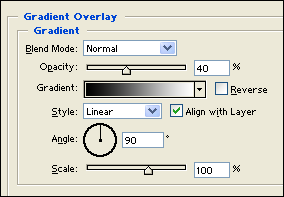
Under Layer Style (Layer > Layer Style) add a Gradient Overlay blending option to your second black text layer.

Step 6:
Now Add another text layer with your text with a white colour shade.

Step 7:
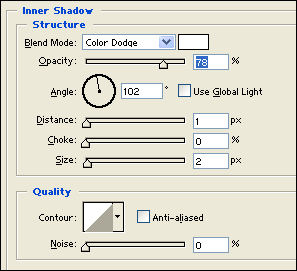
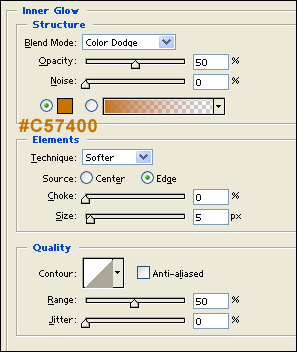
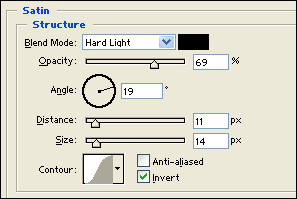
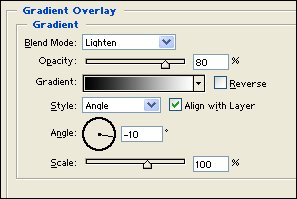
Under Layer Style (Layer > Layer Style) add an Inner Shadow, Inner Glow, Satin and Gradient Overlay blending options to the white text layer. Then set the layers blending mode to Darken so the layer styles design appears on the text.

Step 8:
Once again add another text layer with white colour shade.

Step 9:
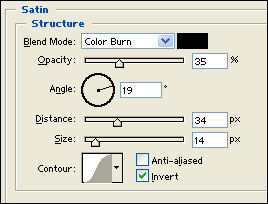
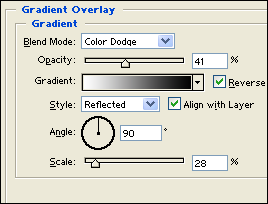
Under Layer Style (Layer > Layer Style) add a Satin and Gradient Overlay blending options to your text layer from step eight. Then set the layers blending mode to Soft Light.

Step 10:
Create a new layer and draw a random white shape with some sharp edges. Roughly like the picture shown below.

Step 11:
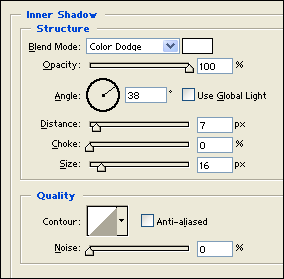
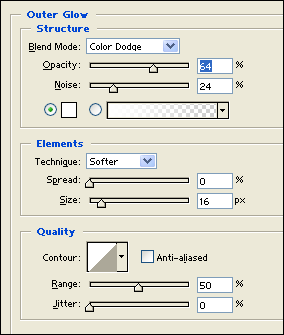
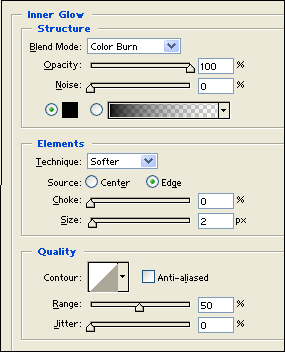
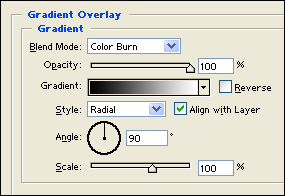
Under Layer Style (Layer > Layer Style) add an Inner Shadow, Outer Glow, Inner Glow and Gradient Overlay blending options to your white shape layer. Then set the layers blending mode to Darken.

Step 12:
Now just duplicate the shape layer from the last steps for more holes, just randomly add holes on your text.

Result:
How to create Rusty Text with Holes

Leave a Reply