
















Step 1:
Let's start out by creating a new file. I used a 400x200 pixels canvas set at 72dpi, and I filled my background with a white color. Now create a new layer set and name it 'Glossy Buttons'.
Select the Rectangle Tool and above your screen under the options palette check anti-aliased. Create a new layer and draw a rectangle with 126×27 px dimensions and #B8F416 color shade.

Step 2:
Under Layer Style (Layer > Layer Style) add an Inner Glow and Stroke blending options to your green rectangle layer.

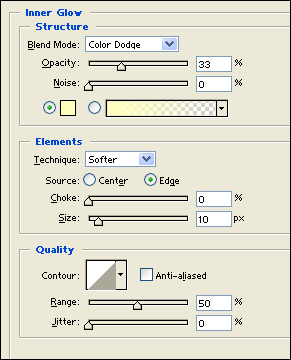
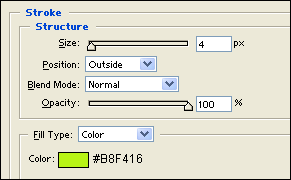
Step 3:
Now draw a skinny rectangle with 134×12 px dimensions and #B8F416 color shade right above your large rectangle.
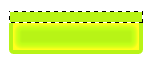
Step 4:
Under Layer Style (Layer > Layer Style) add an Inner Shadow and Gradient Overlay blending options to your skinny rectangle layer.



Step 5:
Now choose the Horizontal Type Tool and set the font family to Arial, bold, 16 pt, strong and #659000 color shade. In a new text layer type the name of your first glossy button.

Step 6:
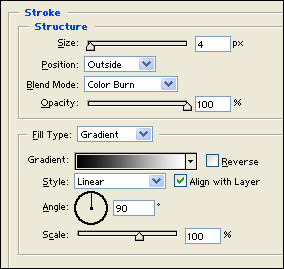
Under Layer Style (Layer > Layer Style) add a Gradient Overlay and Stroke blending options to your text layer.

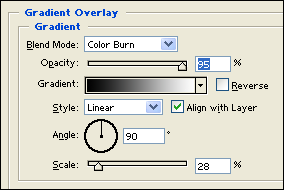
Results:
Glossy Buttons.


Do you have a website or blog? Please support this page.
If you've enjoyed reading the above tutorial, or it's been helpful to you I'd really appreciate a link back to it from your blog or website, as every little link helps! |
Here are the relevant details to help make the job easier for you . . |
Title = Professional Blog Template Design
Description = An easy-to-follow tutorial on creating a Professional Blog Template Design
URL = http://www.castleprint.co.uk/photoshop_blog_template_design.html |
|
Designers! Would you like to write for us?
Are you a designer? If so, would you like to contribute to our site in return for some promotional links back to your site / blog?
Whether it's a tutorial using your favoured software, logo design, web design or you have some useful general design tips, then we'd love to hear from you. Providing your content is unique, i.e. not published elsewhere, then I'm sure we can come to an arrangement whereby we both benefit.
If so, please drop us a line here:- Write For Us Enquiry Form
|
Please help us to provide you the reader with the most relevant content by providing your feedback on the above article/tutorial.
We don't ask for any personal information and it will take less than a minute to leave feedback. Please submit your feedback here:


Other Photoshop Tutorials: |
|
|
|
|
|
|
|
|
|
|
|
|
|
|
|

Further design-related info: |
|
|
|
|

back to top
Hopefully, the above tutorial has been of some help so please let us know how we're doing by leaving a message in the comments section below.
Would you like to see new Photoshop tutorials on a regular basis?
Are you interested in Adobe Illustrator tutorials?
Do you write graphics-related tutorials and would like to see them posted here?
(with links back to your site)
Please let us know! |