























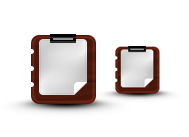
How to create a Clipboard Design
Step 1:
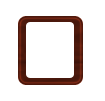
Let’s start out by creating a new file. I used a 300×300 pixels canvas set at 72dpi, and I filled my background with white. In a new layer draw a rounded rectangle with #5E3A2E color shade and 65 x 69 px dimensions.

Step 2:
Under Layer Style(Layer > Layer Style) add an Inner Glow and Pattern Overlay blending options to the rounded rectangle layer.
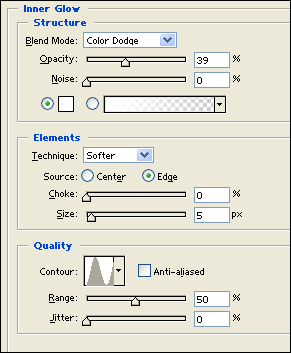

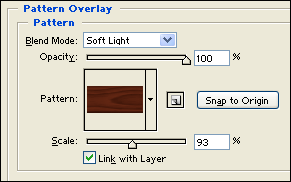
Result:

Step 3:
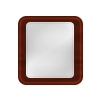
In a new layer draw a white rounded rectangle with 48 x 56 px dimensions, make sure the corners on this rounded rectangle is small.
Step 4:
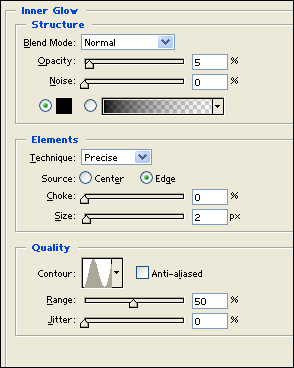
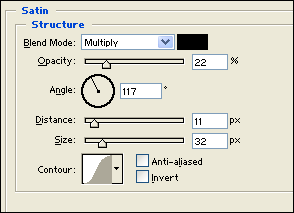
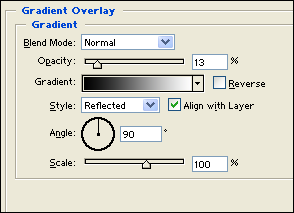
Under Layer Style(Layer > Layer Style) add an Inner Glow, Satin and Gradient Overlay blending options to the white rounded rectangle layer.
Result:
Clipboard icon 10
Step 5:
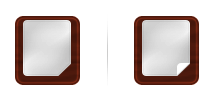
Now use the Polygonal Lasso Tool to create a slanted selection around the bottom right corner of your white rounded rectangle. Then cut the selection and right away go to Edit > Paste, rotate the white piece through Edit > Transform it looks like the rounded rectangle has a fold.
Step 6:
In a new layer draw a small black rectangle with 26 x 5 px dimensions on top of the paper design.

Step 7:
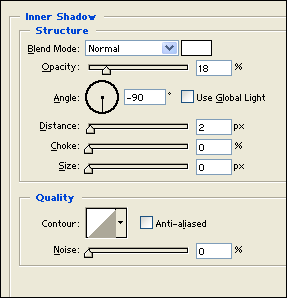
Under Layer Style(Layer > Layer Style) add an Inner Shadow blending option to the small black rectangle layer.
Result:

Step 8:
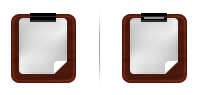
Now duplicate the small black rectangle and nudge it down as shown below. Then in a new layer draw a small gray rectangle on the middle of the black rectangle designs.
Results:
How to create a Clipboard Design

Leave a Reply