























It’s common practice when using a program such as Adobe In-Design/Illustrator etc. to convert all text to outlines. This is especially so when an unusual font has been used in the artwork, which the print shop may not have on their system. Outlining fonts makes all text non-editable, so make sure you have an editable copy saved somewhere safe.
Time needed: 5 minutes.
- Text to Outlines
It’s a very straightforward procedure as follows:
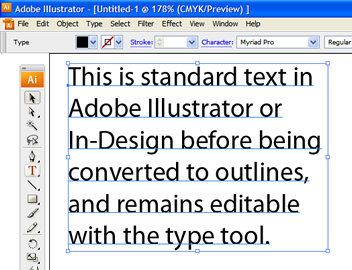
With either one of the pointer arrows selected in the main toolbar:
- Select All Type
Select all type in your document – ‘Select All’ (Ctrl A)
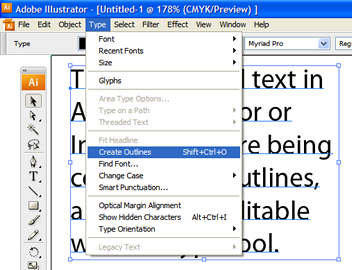
- Main Menu
and then goto ‘Type‘ in the main menu and select ‘Create Outlines‘.
- Text Now Graphics
You’ll notice that every text character is now converted into a single standalone graphic.
(The text below looks rough only because it is still selected).
When you click on some whitespace on your artboard, the text will de-select and look ‘normal’.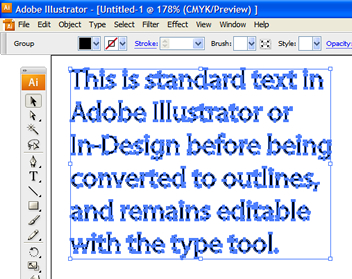
- Manipulating Converted Text
Select the 2nd arrow, (the white one) and you’ll be able to manipulate your newly-converted text any which way you like.
- Example
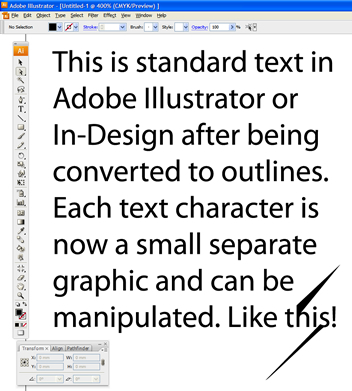
Creating a logo
Incidentally, you can now see one way of creating logos. Find a suitable typeface, type in your lettering required for the logo, convert text to outlines and you now can stretch or play with the graphic to your heart’s content.
If there’s something that needs explaining in the above article, or you any have tips / shortcuts of your own regarding text to outlines, then please leave a message in the comments section below.
Leave a Reply