














link to homepage
lbordertop
menu bar icon

1x1
Photoshop Tutorials UK
business card printing icon 5

business card printing icon 6

To Home Page
HomePage

01635 255 552

menuclose


11-1
392head

Industrial Text Effect created in Photoshop
 
spacer
spacer

Industrial Text Effect

To Home Page


Industrial Text Effect 1

Step 1:

Let's start out by creating a new file. I used a 500×500 pixels canvas set at 72dpi, and I filled my background with black color. Now select the Horizontal Type Tool then set the font family to Agency FB, bold, 72 pt, strong and #4E4E4E color shade. Then in a new text layer type your website name.

 

Industrial Text Effect 2

Step 2:

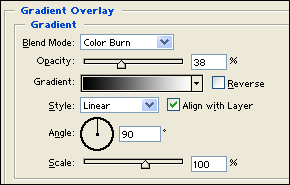
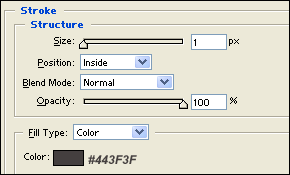
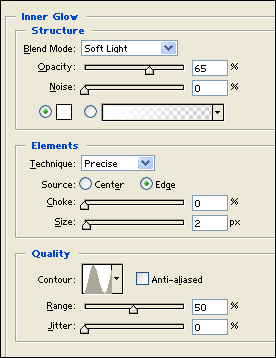
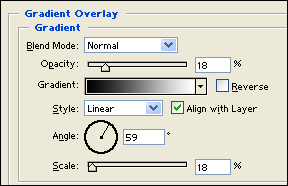
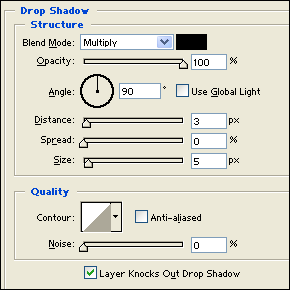
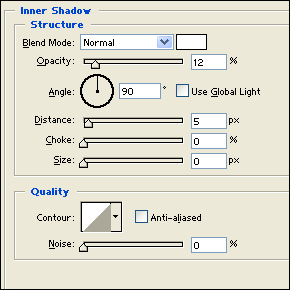
Under Layer Style(Layer > Layer Style) add a Drop Shadow, Inner Shadow, Inner Glow, Gradient Overlay and Stroke blending options to your dark gray text layer.
Industrial Text Effect 3

Industrial Text Effect 4

Industrial Text Effect 5

Industrial Text Effect 6

Industrial Text Effect 7

Result:

Industrial Text Effect 8

Step 3:

In a new text layer type out your name in white color.

Industrial Text Effect 9

Step 4:

Under Layer Style(Layer > Layer Style) add an Inner Glow blending option to your white text layer. Then set the text layer's blending mode to Darken.

Industrial Text Effect 10

Result:

Industrial Text Effect 11

Step 5:

Make a new layer set and name it 'Structure'. Then in a new layer draw a black spot using your brush tool with a soft brush. Now make a gray rectangle with #8C8C8C color shade and 32 x 55 px dimensions on the black spot.

Industrial Text Effect 12

Step 6:

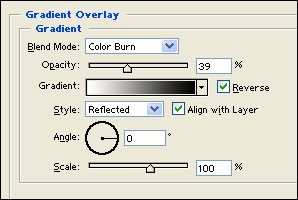
Under Layer Style(Layer > Layer Style) add an Inner Shadow, Inner Glow and Gradient Overlay blending options to your gray rectangle layer.
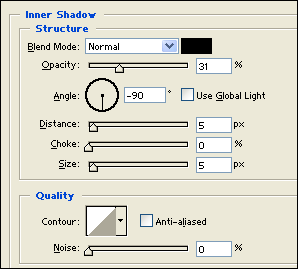
Industrial Text Effect 13

Industrial Text Effect 14

Industrial Text Effect 15

Result:


Industrial Text Effect 16

Step 7:

Create a new layer then draw a gray ellipse with #8C8C8C color shade and 34 x 19 dimensions.

Industrial Text Effect 17

Step 8:

Under Layer Style(Layer > Layer Style) add a Drop Shadow, Inner Glow and Gradient Overlay lending options to your gray ellipse layer.
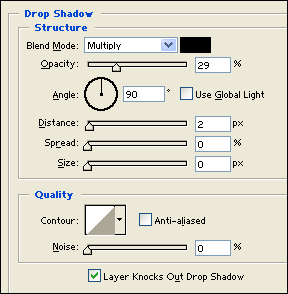
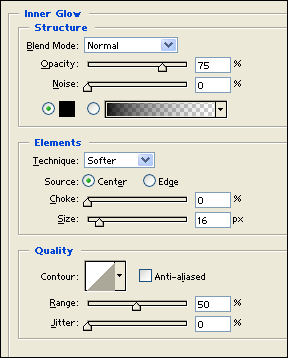
Industrial Text Effect 18

Industrial Text Effect 19

Industrial Text Effect 20

Result:

Industrial Text Effect 21

Step 9:

In a new layer draw a black ellipse with 22 x 13 px dimensions on top of the gray ellipse design.

Industrial Text Effect 22

Step 10:

Duplicate the 'Structure' layer set and merge it through Layer > Merge Layer Set. Then resize it through Edit > Transform and duplicate it again and position as shown below.

Industrial Text Effect 23

Step 11:

Now add more small structures on your text design, anywhere that fits with your text.

Industrial Text Effect 24

Results:

Industrial Text Effect.

Industrial Text Effect 25

Return to Home page

360div-trans


Do you have a website or blog? Please support this page.

If you've enjoyed reading the above tutorial, or it's been helpful to you I'd really appreciate a link back to it from your blog or website, as every little link helps!
Here are the relevant details to help make the job easier for you . .

Title = Professional Blog Template Design

Description = An easy-to-follow tutorial on creating a Professional Blog Template Design

URL = http://www.castleprint.co.uk/photoshop_blog_template_design.html


360div-trans

Designers! Would you like to write for us?

Are you a designer? If so, would you like to contribute to our site in return for some promotional links back to your site / blog?

Whether it's a tutorial using your favoured software, logo design, web design or you have some useful general design tips, then we'd love to hear from you. Providing your content is unique, i.e. not published elsewhere, then I'm sure we can come to an arrangement whereby we both benefit.

If so, please drop us a line here:- Write For Us Enquiry Form

360div-trans

We Value Your Feedback.

Please help us to provide you the reader with the most relevant content by providing your feedback on the above article/tutorial.

We don't ask for any personal information and it will take less than a minute to leave feedback. Please submit your feedback here:
feedback icon

360div-trans

Other Photoshop Tutorials:

360div-trans

Further design-related info:
How to design a letterhead - An easy-to-follow tutorial taking you through the letterhead design steps.
How to design a folded A4 leaflet - We show you how to get the folds in the right place on an A4 leaflet.
How to Design a Business Card - An easy-to-follow tutorial taking you through the essential steps.
Spot & Process Colours Explained - Spot & Process colours are explained in this thorough article.

360div-trans

Feedback Form

Write For Us

back to top

Hopefully, the above tutorial has been of some help so please let us know how we're doing by leaving a message in the comments section below.

Would you like to see new Photoshop tutorials on a regular basis?

Are you interested in Adobe Illustrator tutorials?

Do you write graphics-related tutorials and would like to see them posted here?
(with links back to your site)

Please let us know!


comments powered by Disqus
 
rbordertop
footer1
footer3
PRODUCTS SITE INFO ARTICLES OTHER SITE INFO TUTORIALS
Business Cards
Brochures & Flyers
Compliment Slips
Continuous Stationery
Digital Printing Service
Envelope Printing
Folder Printing
Invoices - NCR
Letterheads
Printed Envelopes
Specialist Labels
Trade Printing Service
Xmas Card Printing
Contact Us
Delivery
Terms & Conds.
Privacy
Sitemap
Resources

To Home Page HOME

ARTWORK
Artwork & Design
Artwork Help

Booklet / Self Publishing
Business Card Materials/Boards
Branding and your Image
Colour Problems Discussed
Development of Print Technology
Digital or Litho?
Fonts Explained
Free Business Cards - a bargain right?
History of the Business Card
Legal Requirements for Stationery
Logo Design - where do you begin?
Spot & Process Colours Explained
Using QR Codes on your Stationery
Web Design
Web Design to Print Design
When is Black & White Printing Appropriate?
Copyright - who owns it?
FAQ - Business Cards
FAQ - General Questions
FOR SALE - Used Print Equipment
Glossary of Printing Terms
Job Vacancies
Paper Sizes in the UK
Software for Print & Design
Stock Photo Service
Testimonials
Write for Us
Converting Fonts to Outlines
Design a Business Card
Design a Folded A4 Leaflet
Design a Letterhead
Preparing a Print File in InDesign
Preparing Artwork for Spot UV
Rich Black Colour in Artwork

PHOTOSHOP TUTORIALS

- see full list in main menu on left or follow this link: Photoshop Tutorials
footer4
footer2

"Just to let you know I received the business cards and compliment slips yesterday. Thanks for your help. I'm delighted with the quality. If I can pass some business your way in the future I will."

Kenny King
Ixisys - www.ixisys.com

spacer

Castle Print & Design in partnership with:

  •   The Roman Group
  •   Centurion House
  •   Woodside Road
  •   Southbourne
  •   Bournemouth
  •   Dorset BH5 2BA

  •   Tel: 01635 255 552
  •   Fax: 0800 389 7262

 
laminated business cards icon
 

"I don't normally have the time to shop around too much, but was very happy with your prices and service. The logo you designed for us has been very well received. Look forward to many years of continued business."

Steve Thompson
Horizon Electrical

© Copyright 1992 - 2013 Castle Print & Design - All rights reserved

business card iconbusiness card image 4