














business cardsAbout usRequest a quotationFAQsContact usSearch siteLinksbusiness cards
link to homepage
lbordertop
menu bar icon

1x1

Photoshop Tutorials UK

menutop

menudiv

To quickly find the product, article, tutorial or other site info you require, please use the search facility below.


menudiv

If your enquiry is urgent, we can quickly be contacted on:

01635 255 552

menuclose
11-1
392head

A futuristic logo created in Photoshop

1x1

Futuristic Logo Design.

A futuristic logo created in Photoshop pic 1

Step 1:

Let's start out by creating a new file. I used a 500x400 pixels canvas set at 72dpi, and I filled my background with a black color. Then create a new layer set titled 'Logo Structure'.

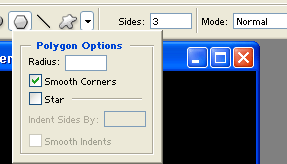
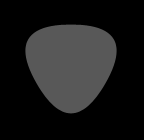
Select the Polygon Tool, under the options palette choose fill pixels with 3 sides and anti-aliased checked. Now open up the polygon options palette and check smooth corners and uncheck star setting. In a new layer draw a gray polygon with #585858 color shade and 92x90 px dimensions.

A futuristic logo created in Photoshop pic 2

A futuristic logo created in Photoshop pic 3

Step 2:

Go to Edit > Transform > Perspective, when the transform points appear on your shape drag the the top right point up until you get the same design as shown below.

A futuristic logo created in Photoshop pic 4

Step 3:

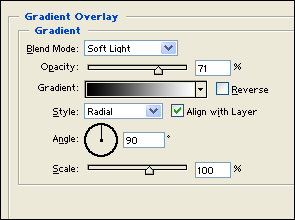
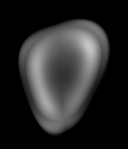
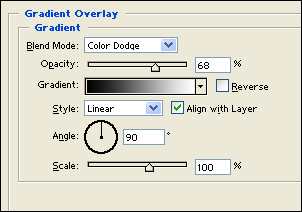
Under Layer Style(Layer > Layer Style) add an Inner Shadow, Satin and Gradient Overlay blending options to the deformed gray polygon layer.
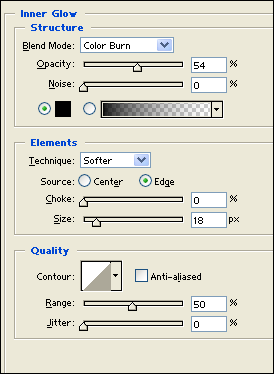
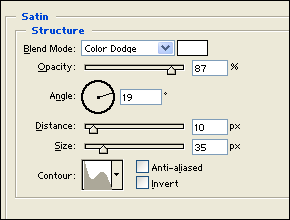
A futuristic logo created in Photoshop pic 6

A futuristic logo created in Photoshop pic 7

A futuristic logo created in Photoshop pic 8

Step 4:

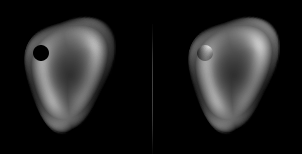
Create a new layer and draw a black circle with 16×16 px dimensions. Now under Layer Style(Layer > Layer Style) add a gradient overlay blending option. Then set the layer's blending mode to Soft Light.

A futuristic logo created in Photoshop pic 9

A futuristic logo created in Photoshop pic 10

Step 5:

Duplicate the circle design layer three times and position it as shown below.
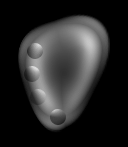
A futuristic logo created in Photoshop pic 11

Step 6:

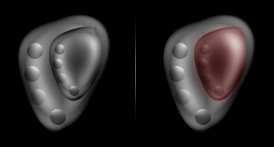
Duplicate the 'Logo Structure' layer set and go to Layer > Merge Layer Set, this should turn the duplicated layer set into a regular layer. Resize the duplicate design by 60% and position inside the original design. Then under Layer Style(Layer > Layer Style) add an Outer Glow and Color Overlay blending options.
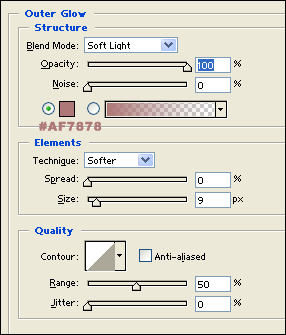
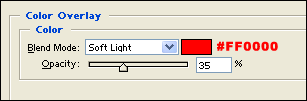
A futuristic logo created in Photoshop pic 12

A futuristic logo created in Photoshop pic 13

A futuristic logo created in Photoshop pic 14

Step 7:

Place the smaller logo structure design into the 'Logo Structure' layer set. Then add two circle designs on the top corner of the logo design.
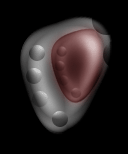
A futuristic logo created in Photoshop pic 15

Step 8:

Once again duplicate your 'Logo Structure' layer set and merge it down. Flip the duplicate horizontal through Edit > Transform. Position it right next to the original.
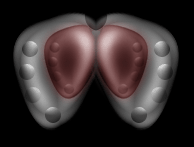
A futuristic logo created in Photoshop pic 16

Step 9:

Now duplicate the logo structure layer from step eight and resize by 50%. Then rotate it by 90 degrees CCW through Edit > Transform. Finish it off with another copy for the second structure.
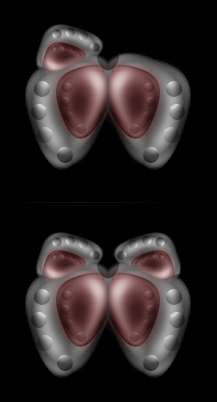
A futuristic logo created in Photoshop pic 17

Step 10:

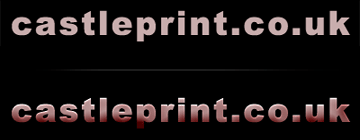
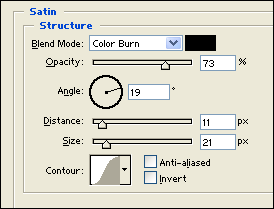
Select the Horizontal Type Tool and set the font family to Arial Black, regular, 36 pt, strong and #C8ADAD color shade. In a new text layer type your name. Then under Layer Style(Layer > Layer Style) add an Inner Shadow and Satin blending options.
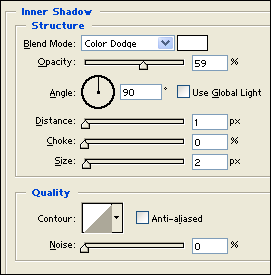
A futuristic logo created in Photoshop pic 18

A futuristic logo created in Photoshop pic 19

A futuristic logo created in Photoshop pic 20

Results:

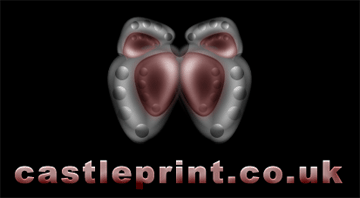
Futuristic Logo Design.

A futuristic logo created in Photoshop pic 21

Other Photoshop Tutorials

Hopefully, the above tutorials have been of some help so please let us know how we're doing by leaving a message in the comments section below.

Would you like to see new Photoshop tutorials on a regular basis? Are you interested in Adobe Illustrator tutorials? Please let us know!

Designers!

Are you a designer? If so, would you like to contribute to our site in return for some promoted links back to your site?

Whether it's a tutorial using your favoured software, logo design, web design or you have some useful general design tips, then we'd love to hear from you. Providing your content is unique, i.e. not published elsewhere, then I'm sure we can come to an arrangement whereby we both benefit.

If so, please drop me a private message here: PM to Paul

HTML Comment Box is loading comments...


Add to Google
Add to My Yahoo!
AddThis Social Bookmark Button


A futuristic logo created in Photoshop

new message
General Enquiry Form
castle logo - adobe in-design
If you experience any difficulty in submitting this form, please contact us on:
01635 255 552 or email us at: sales@castleprint.co.uk and we will respond asap.


Required items indicated with *
Email: *
Name: *
Tel. Number: *
Subject: *

I would like more information. Contact me on the above telephone number to discuss my enquiry
  Telephone me on the above number

My enquiry relates to:
  General printed products   Artwork & Design

I wish to receive samples of the following products. Please note: if you need to select more than one option, please enter the extra product you require in the message box further down this form.
Samples:
Laminated / Plain Business Cards
Letterheads / Compliment Slips
Printed Envelopes - 1, 2, 3 or 4 colours
Full Colour Brochures & Flyers

My address details:

Any other details not covered above:

Attach Files - 5Mb max
If your file(s) are over 5Mb, please contact us and we will supply an alternative email address.
Please check that you have entered all details correctly, to ensure we deal with your enquiry in an efficient manner.

Castle Print & Design
in partnership with The Roman Group, Centurion House, Woodside Road, Southbourne, Bournemouth, Dorset, BH5 2BA

Tel: 01635 255 552 / FreeFax: 0800 389 7262

1x1
11-2
176head1

1x1

Photoshop Tutorials

1x1
1x1   1x1
Checklist

Remember, if designing for print, set your workspace to 300dpi and at actual size to be used, or larger. Many people use higher resolutions, 600dpi for instance, but this is not necessary, and will not improve the final print quality.

If designing just for the web, then a 72dpi workspace is fine.

Another thing to consider - if designing for print, then make sure 'Mode' is set for CMYK.

Insert > Mode > CMYK

Only use RGB mode if designing for the web.

 
rbordertop
footer1
footer3

visa-sm spacerTelephone: 01635 255 552spacerrorinfospacerFreeFax: 0800 389 7262 spacermastercard-sm

footer4
footer2